User Guide
Everything you need to know to get started and make the most of the platform
Welcome to the platform! This guide will help you get started quickly and understand the core features. Whether you're managing documents, properties, or reviews, we've got you covered
Quick Start
Prerequisites
Before you begin, ensure you have selected a property. This is typically done during the onboarding process when you first set up your account
Step 1: Upload Documents
Navigate to the Documents page and upload your property documents. You can add files by clicking the upload button or dragging and dropping them directly into the upload area
Step 2: Start the Review
Once your documents are uploaded, head to the Review page and start analyzing your property! The system will help you identify important insights from your documents
Next Thing to Consider
When you want to upload documents for another property, you'll need to create a new property first. This keeps your documents organized by property and allows you to manage multiple properties efficiently. Read Property Guide below for more details
Documents Guide
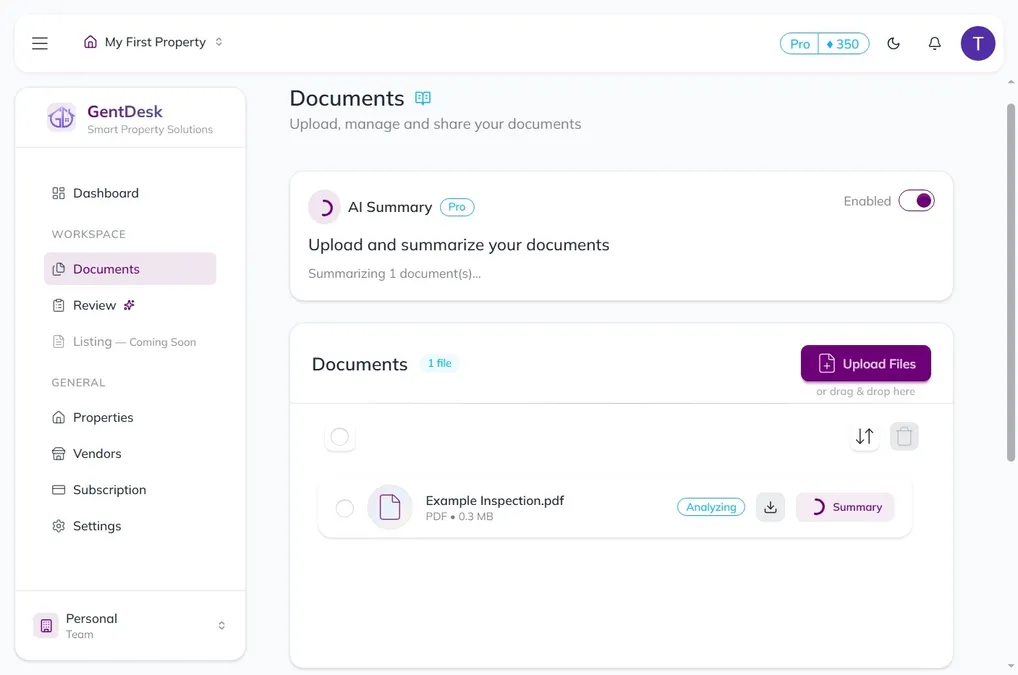
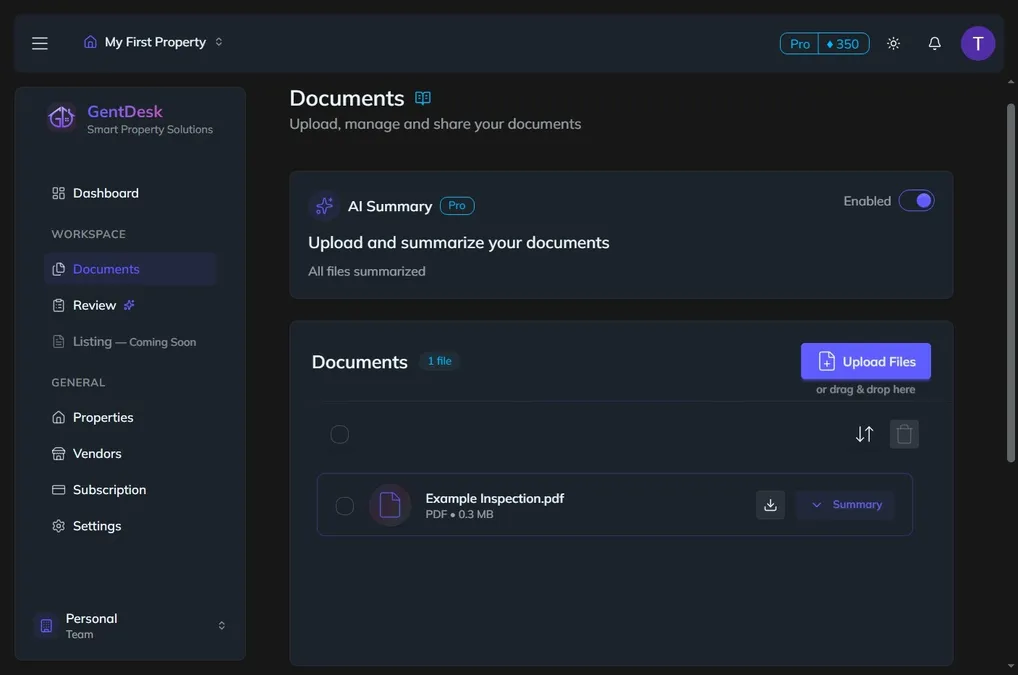
The Documents page is your central hub for managing all property-related files. Upload, organize, and access your documents whenever you need them
How to Upload Documents
There are multiple ways to add documents to your property:
- Click to Upload: Click the upload button and select files from your device
- Drag and Drop: Drag files directly into the upload area
- Secure Upload Link: Share a secure upload link found in the Share section. Recipients can upload files directly without needing an account
- Email Upload: Send documents as attachments to the upload email address provided in the Share section
Note: Shared upload links and email addresses are valid for 24 hours for security purposes
Document Summary Process
Documents can be summarized in two ways:
- Auto-Summary: Enable the auto-summary toggle (Pro feature) to automatically summarize documents as they're uploaded
- Manual Summary: Start the review process to trigger document summarization
Review Guide
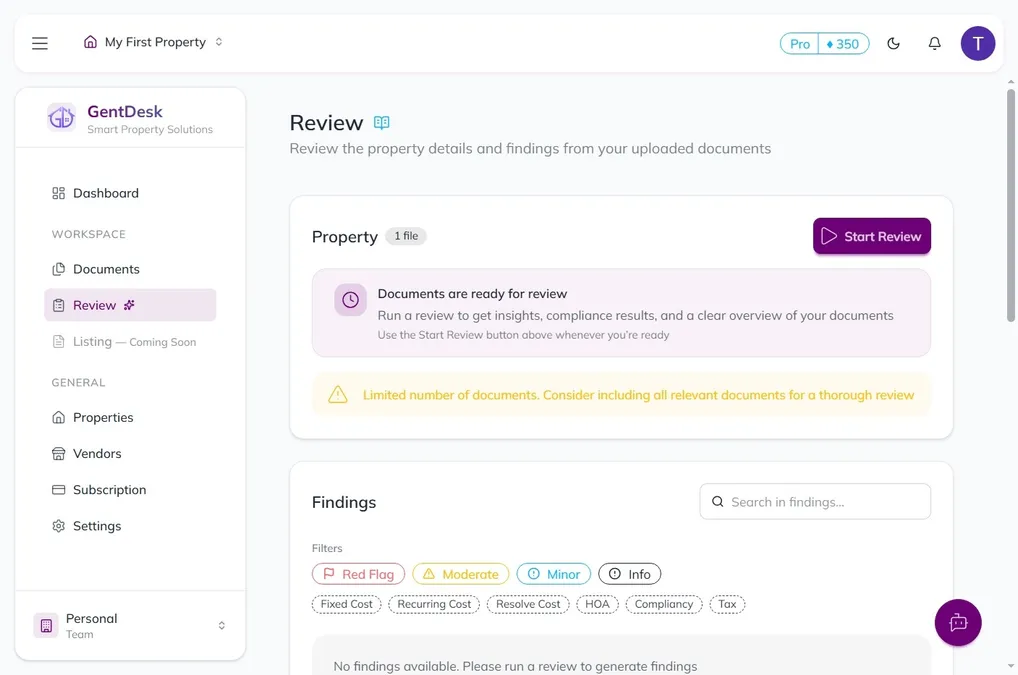
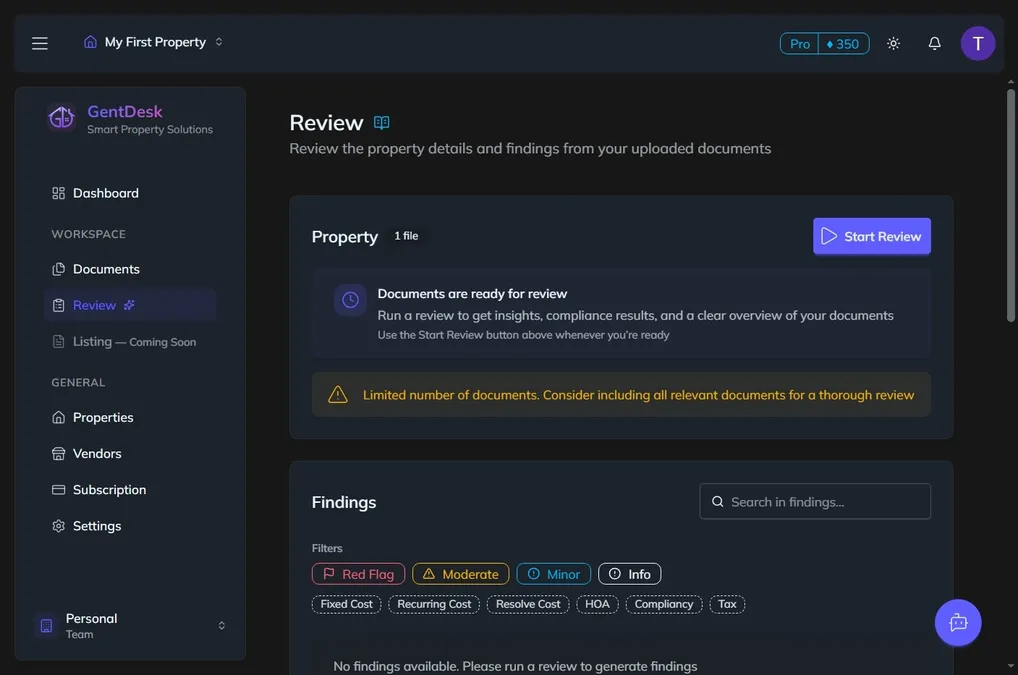
The Review page automatically summarizes your documents (if not already done) and provides comprehensive analysis of your property
Findings
Detailed breakdown of important discoveries including identified risks, necessary repairs, and good-to-know information about the property
Location Snapshot
View top nearby essential locations such as schools, hospitals, shops, and public transport, complete with user ratings to help you understand the neighborhood
AI Assistance
Ask questions about your documents and review using our AI assistant. It has full access to your uploaded documents and can help you understand complex information. Agents can also use this feature to refine and improve the review
Share Section
Generate an external link to share your review with clients, partners, or stakeholders. They can view the review without needing to log in
Property Guide
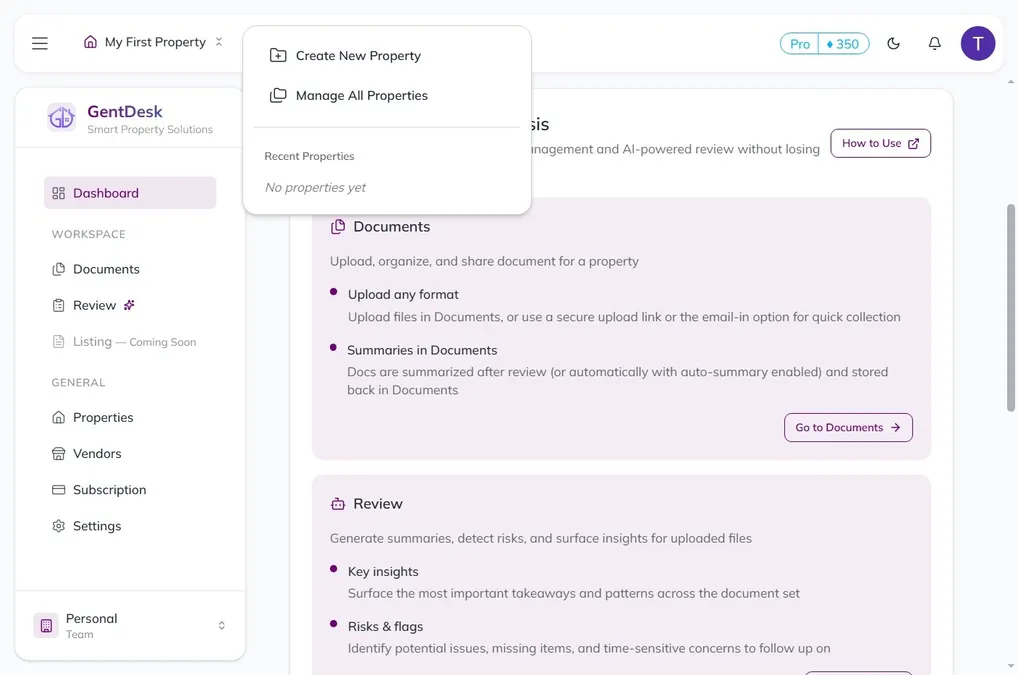
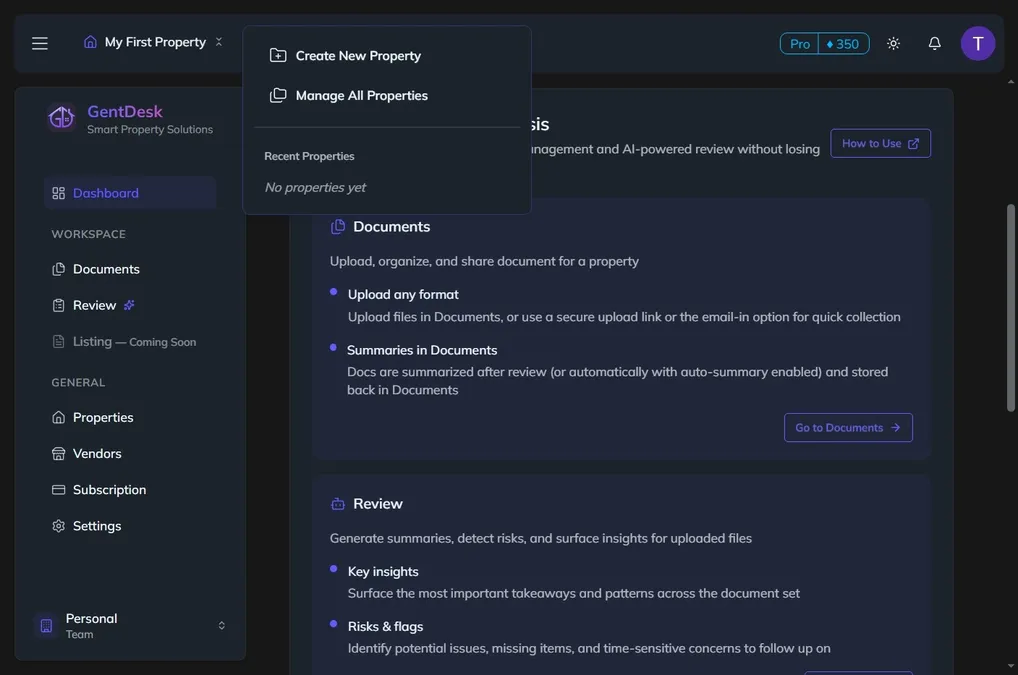
GentDesk uses a property-centric model where everything is organized around individual properties. This approach allows you to efficiently manage multiple properties while keeping all associated documents, reviews, and insights grouped together for easy access and organization
Quick Access via Navbar
Use the property selector in the top-left corner of the navigation bar to quickly create new properties or switch between your recent properties. This is ideal when you need to jump between properties frequently
Dedicated Properties Page
For more comprehensive property management, visit the dedicated Properties page where you can view all your properties, edit details, and manage property-specific settings
Subscription & Credits
Pro Plan
Document summaries, listings and lead tracking are free. The Pro plan adds premium AI models, access to insights and priority support, and includes a monthly credit allocation that's designed to be sufficient for a busy agent's workload
Credit System
Your Pro subscription includes monthly credits for AI-powered summaries and analysis. If you need more credits beyond your monthly allocation, you can purchase additional credits separately through the Subscription page
Managing Your Subscription
Visit the Subscription page to view your billing history, manage payment methods, monitor your credit usage, and purchase additional credits as needed
Need More Help?
If you have questions not covered in this guide, our support team is ready to assist you
Contact Support